


皆さまこんにちは。SB C&Sの下山です。
連載第1回前回記事ではTenstorrent社、そしてTensixコア・アーキテクチャの概要についてお話しさせていただきました。
そこで、2回目となる本記事では、実際にソフトウェアスタックや周辺ツールのインストールとLLMモデルを動作させるまでの手順を追っていきたいと思います。
なお、本記事の内容は以下で公開されているドキュメントをベースにして作成されました。
Installing the Tenstorrent Software Stack
tt-metal/models/tt_transformers
今回記事では引き続き、Tenstorrent様からお借りしたBlackhole世代のP150カードを使用します。以降、本記事ではアクセラレータボードをP150カードと表記します。
Tenstorrentソフトウェアスタックのインストール
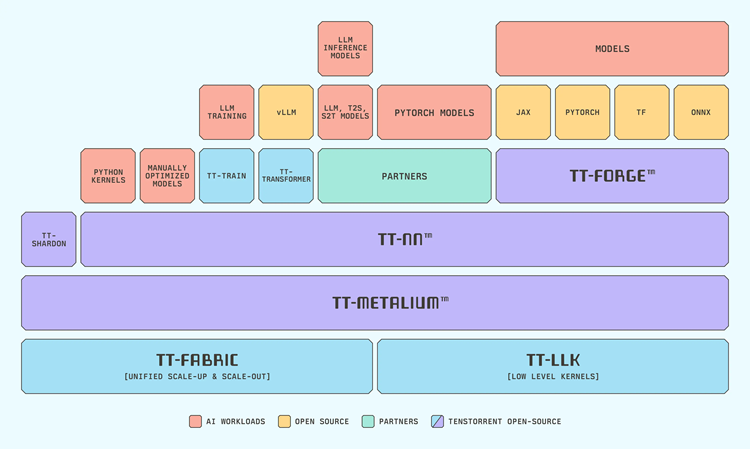
前回の記事でも大まかに触れましたが、Tenstorrentのソフトウェアスタックは、コンパイラであるTT-Forge、ライブラリであるTT-NN、SDKであるTT-Metaliumから構成されています。これらをインストールする方法には、tt-installerと呼ばれるスクリプトを使用する方法と、各コンポーネントを個別にインストールする方法の2通りがあります。
tt-installerをオプションの引数指定なしで使用すると、コンテナランタイムとしてPodmanが導入されます。そのため、コンテナランタイムとしてDockerを使用したい場合や、tt-installerによって導入されるソフトウェア一式が不要な場合は、後述の手順に従って手動インストールを行うとよいでしょう。
tt-installerでは、以下のソフトウェアがホストに導入されます。
・SDKコンテナ ・カーネルモードドライバ ・ファームウェア
・FWユーティリティ
他、システムツールなど。
tt-installerを用いた自動インストール
GitHub上で公開されているtt-installerを使用しますが、スクリプトはjqとcurlに依存してるため実行前にこれらを導入しておきます。
sudo apt update && sudo apt install -y curl jq
続いてtt-installer本体を実行します。
/bin/bash -c "$(curl -fsSL https://github.com/tenstorrent/tt-installer/releases/latest/download/install.sh)"
①tt-installerスクリプトの実行
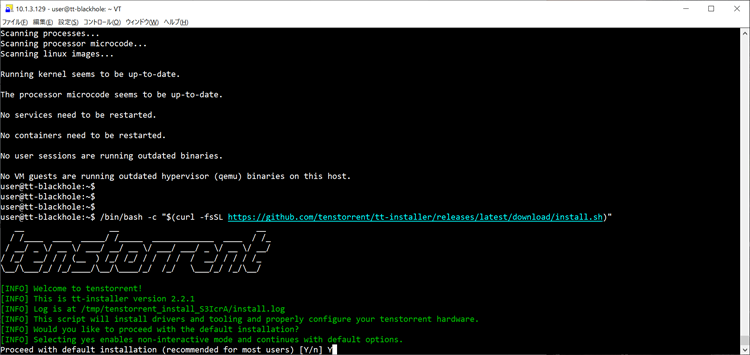
スクリプトを実行すると画像の内容が出力され、インストールを続行するかを確認されます。
Yを押下し手順を進めましょう。
②TT-Metalium Slimコンテナの導入
[INFO] Would you like to install the TT-Metalium slim container?
[INFO] This container is appropriate if you only need to use TT-NN
Install Metalium [Y/n]
tt-installerは続いて、TT-Metalium Slimコンテナを導入するかを確認してきます。必要に応じてY/Nを選択しましょう。
※TT-Metalium Slimコンテナには、SDKに相当するTT-Metaliumと、ライブラリ等に相当するTT-NNが同梱されています。なお、別途構成済みのコンテナからTenstorrentデバイスを利用する場合などは、TT-Metalium Slimコンテナが不要となる場合もあります。
■tt-installerの挙動について

オプション引数を指定せずにスクリプトを実行した場合、tt-installerはコンテナランタイムとしてPodmanを新たにインストールしようとします。DockerまたはPodmanがすでにインストールされている場合など、tt-installerによるPodmanの導入を望まない場合は、"--install-container-runtime=no"を指定してtt-installerを実行してください。
③TT-Metaliumモデルデモコンテナの導入
[INFO] Would you like to install the TT-Metalium Model Demos container?
[INFO] This container is best for users who need more TT-Metalium functionality, such as running prebuilt models, but it's large (10GB)
Install Metalium Models [Y/n]
TT-Metaliumモデルデモコンテナを導入する場合、Yを押下します。
TT-Metalium Slimコンテナの場合と同様に、モデルのデモが必要ない場合はこのコンテナは導入しなくても構いません。
④Pythonパッケージの導入
[INFO] How would you like to install Python packages?
1) active-venv: Use the active virtual environment
2) new-venv: [DEFAULT] Create a new Python virtual environment (venv) at /home/$USER/.tenstorrent-venv
3) system-python: Use the system pathing, available for multiple users. *** NOT RECOMMENDED UNLESS YOU ARE SURE ***
4) pipx: Use pipx for isolated package installation
Enter your choice (1-4) or press enter for default (new-venv):
P150カードに関連するソフトウェアをどのPython実行環境上に導入するかを選択します。
1) は、すでに有効なvenvが存在する場合、そこにツールをインストールします。
2) は、新たなvenvを作成し、そこにツールをインストールします。
3) は、venvを使用せず、ホストのシステムPython環境に直接ツールをインストールします。この選択肢は通常推奨されません。
4) は、pipxの隔離環境にツールをインストールします。
いずれの番号も選択しない場合、2)が規定値として選択されます。
⑤システムソフトウェアの依存関係のインストール
続くステップでは、P150カードを利用するために必要なシステムソフトウェアが導入されます。このステップが完了すると、tt-installerはシステムを再起動するためユーザーに確認を行います。
[INFO] Would you like to reboot now?
ソフトウェアの導入を完了するため、Yを押下しましょう。
この質問が表示されない、もしくは自動的にシステムが再起動されなかった場合は手動でホストを再起動してください。
⑥ソフトウェアのインストール結果を確認する
システムソフトウェアをPython仮想環境にインストールした場合、まずはインストール先の仮想環境をアクティブにする必要があります。
次の例は④の手順で2)を選択し、tt-installerが作成した新たな仮想環境にシステムソフトウェアをインストールした場合の操作です。その他の場合はユーザーが選択した選択肢に応じて内容を読み替えるようにしてください。
source ~/.tenstorrent-venv/bin/activate
続いて、tt-smiを実行します。
tt-smi
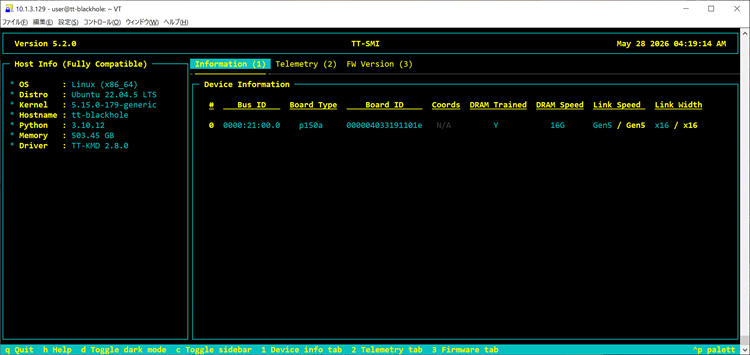
tt-smiのTUIが表示され、ホストにインストールされているP150カードが正しく列挙されることを確認しましょう。
ここまでの手順が問題なく完了すれば、ひとまずの環境構築は完了です。
■ソフトウェアの手動インストール

次のページを参照し、各ソフトウェアを手動でインストールします。

Manual Installation
実際の動作確認
ここまでの手順で、P150カードを使用するための準備が整いました。続いて、実際にLLMモデルを動作させる前に、カードの動作確認を目的としたテストプログラムを実行します。なお、モデルコンテナの取得をスキップしている場合は、本項の手順を実施できません。
手順として、次のドキュメントを参照します。
テストスクリプトの実行
まず、Tenstorrentのソフトウェアを導入したPython仮想環境を有効化します。なお、前セクションの手順④で「2)」以外を選択している場合は、本箇所を適宜読み替えてください。
source ~/.tenstorrent-venv/bin/activate
次に、各種のデモやスクリプトが収められているモデルコンテナを起動します。
$ tt-metalium-models
(.tenstorrent-venv) user@tt-blackhole:~$ tt-metalium-models
================================================================================
NOTE: This container tool for tt-metalium is meant to enable users to try out
demos, and is not meant for production use. This container is liable to
to change at anytime.
~~~略~~~
(venv) root@tt-blackhole:/tt-metal#
続いて、P150カードに搭載されているプロセッサの動作を確認するため、プロセッサに簡単な計算を行わせるスクリプトを実行します。
このコードは、TenstorrentのTT-NNライブラリを使って、PyTorchのテンソルをTenstorrentデバイス上で計算し、結果をPyTorch側に戻すサンプルです。
■計算の流れ

PyTorchテンソル作成
↓
TT-NNテンソルへ変換
↓
Tenstorrentデバイス上で計算
↓
PyTorchテンソルへ戻す
↓
結果表示
↓
デバイスを閉じる
(venv) root@tt-blackhole:/tt-metal# python ttnn/ttnn/examples/usage/run_op_on_device.py(venv) root@tt-blackhole:/tt-metal# python ttnn/ttnn/examples/usage/run_op_on_device.py
2026-05-28 04:29:39.435 | DEBUG | ttnn:<module>:79 - Initial ttnn.CONFIG:
Config{cache_path=/home/user/.cache/ttnn,model_cache_path=/home/user/.cache/ttnn/models,tmp_dir=/tmp/ttnn,enable_model_cache=false,enable_fast_runtime_mode=true,throw_exception_on_fallback=false,enable_logging=false,enable_graph_report=false,enable_detailed_buffer_report=false,enable_detailed_tensor_report=false,enable_comparison_mode=false,comparison_mode_should_raise_exception=false,comparison_mode_pcc=0.9999,root_report_path=generated/ttnn/reports,report_name=std::nullopt,std::nullopt}
2026-05-28 04:29:39.548 | info | UMD | Creating TopologyDiscovery for architecture: blackhole (topology_discovery.cpp:75)
2026-05-28 04:29:39.548 | info | UMD | Starting topology discovery. (topology_discovery.cpp:92)
~~~略~~~
少し待つとスクリプトの実行が終了し、ほんの少しターミナルの標準出力をさかのぼると、このように行列積の計算結果が出力されています。問題なく計算結果が出力され、スクリプトが正常終了すればテストは成功です。
2026-05-28 04:29:39.894 | info | BuildKernels | Using pre-compiled firmware from: /tt-metal/tt_metal/pre-compiled/12024140084721722581/ (build_env_manager.cpp:260)
tensor([[1.5547],
[1.6250],
[2.2500],
[2.6250]], dtype=torch.bfloat16)
2026-05-28 04:29:43.659 | info | BuildKernels | JIT cache stats: 0/16 hits (0.0%) [0 cached, 0 build-once dedup, 0 merged artifacts, 0 merged genfiles] (build_cache_telemetry.cpp:207)
~~~略~~~
(venv) root@tt-blackhole:/tt-metal#
LLMの実行
それでは、カードの動作確認ができたところで、実際にP150カードのBlackhole上でLlama 3.1 8Bを動作させてみましょう。こちらにもテスト用のスクリプトが用意されているため、それを利用してモデルを実行します。
なお、LLMは推論サーバーを介して実行することも可能ですが、ここではスクリプトから直接TT-Transformersを操作する、どちらかといえば低レイヤー寄りの方法で実行します。
Llama 3.1 8Bは、アクセスに事前承認が必要なGated Modelとして提供されています。そのため、本記事では承認プロセスが事前に完了しているものとして進めます。筆者の場合は、リクエストから数時間後にはアクセスが承認され、モデルを利用できるようになっていました。
①Hugging Faceトークンの準備
export HF_TOKEN=<token>
"hugginface-cli login"を代わりに用いてももちろん問題ありません。
②動作させるモデルの指定
export HF_MODEL=meta-llama/Llama-3.1-8B
環境変数を介してスクリプトで用いるLLMを指定します。
③LLMの実行
pytest models/tt_transformers/demo/simple_text_demo.py -k "performance and batch-1"
環境それでは、実際に上記のコマンドを実行してBlackhole上でLlama3.1が動作するのかを見ていきましょう。
(venv) root@tt-blackhole:/tt-metal# pytest models/tt_transformers/demo/simple_text_demo.py -k "performance and batch-1"
2026-05-28 07:14:32.133 | DEBUG | ttnn:<module>:79 - Initial ttnn.CONFIG:
Config{cache_path=/home/user/.cache/ttnn,model_cache_path=/home/user/.cache/ttnn/models,tmp_dir=/tmp/ttnn,enable_model_cache=false,enable_fast_runtime_mode=true,throw_exception_on_fallback=false,enable_logging=false,enable_graph_report=false,enable_detailed_buffer_report=false,enable_detailed_tensor_report=false,enable_comparison_mode=false,comparison_mode_should_raise_exception=false,comparison_mode_pcc=0.9999,root_report_path=generated/ttnn/reports,report_name=std::nullopt,std::nullopt}
=================================================================== test session starts ====================================================================
platform linux -- Python 3.10.19, pytest-9.0.3, pluggy-1.6.0 -- /opt/venv/bin/python3
cachedir: .pytest_cache
benchmark: 5.2.3 (defaults: timer=time.perf_counter disable_gc=False min_rounds=5 min_time=0.000005 max_time=1.0 calibration_precision=10 warmup=False warmup_iterations=100000)
rootdir: /tt-metal
configfile: pytest.ini
plugins: split-0.11.0, github-actions-annotate-failures-0.3.0, anyio-4.13.0, dash-2.15.0, timeout-2.4.0, cov-7.0.0, benchmark-5.2.3
timeout: 300.0s
timeout method: signal
timeout func_only: False
~~~略~~~
2026-05-28 07:14:35.453 | INFO | models.tt_transformers.tt.model_config:__init__:509 - Inferring device name: P150
2026-05-28 07:14:35.453 | INFO | models.tt_transformers.tt.model_config:__init__:568 - Checkpoint directory: meta-llama/Llama-3.1-8B
2026-05-28 07:14:35.453 | INFO | models.tt_transformers.tt.model_config:__init__:569 - Tokenizer file: meta-llama/Llama-3.1-8B/tokenizer.model
2026-05-28 07:14:35.453 | INFO | models.tt_transformers.tt.model_config:__init__:570 - Cache directory: model_cache/meta-llama/Llama-3.1-8B/P150
~~~略~~~
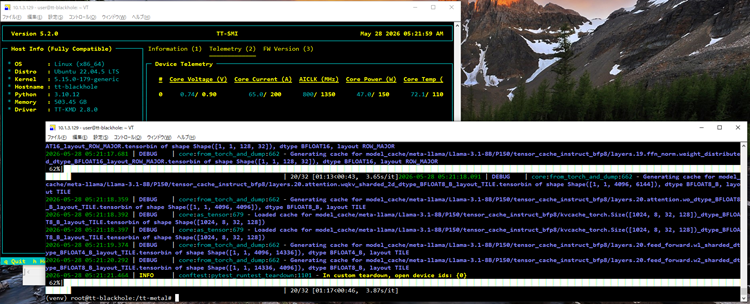
Hugging Faceリポジトリへ正常にアクセスできている場合、モデルの重みファイルのダウンロードが開始され、その後、実際の推論処理が始まります。
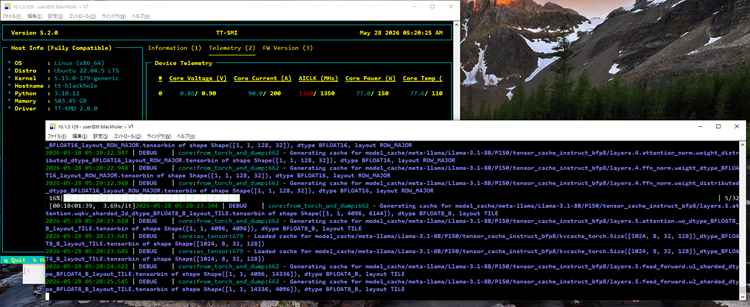
筆者の環境では、22.8t/s/u程度の速度で処理が進んでいました。
2026-05-28 05:09:31.592 | DEBUG | models.tt_transformers.demo.simple_text_demo:test_demo_text:1312 - [User 0] ...it. Let's explore the world of condiments together! What is your favorite condiment? There are so
2026-05-28 05:09:31.636 | DEBUG | models.tt_transformers.demo.simple_text_demo:test_demo_text:1282 - Iteration 199: 44ms @ 22.8 tok/s/user (22.8 tok/s throughput)
2026-05-28 05:09:31.637 | DEBUG | models.tt_transformers.demo.simple_text_demo:test_demo_text:1312 - [User 0] ...et's explore the world of condiments together! What is your favorite condiment? There are so many
2026-05-28 05:09:31.637 | INFO | models.tt_transformers.demo.simple_text_demo:test_demo_text:1323 - Finished decoding, printing the final outputs...
最終的な処理の結果はこちらになります。
==USER 0 - PROMPT
What is your favorite condiment? There are so many condiments to choose from, each bringing its uniq
<long prompt not printed in full>
ore exotic like sriracha or hoisin sauce? Share what your favorite condiment is and why you love it.
==USER 0 - OUTPUT
Let's explore the world of condiments together!
What is your favorite condiment? There are so many condiments to choose from, each bringing its unique flavor and texture to enhance different dishes. Do you prefer the classic taste of ketchup, the creamy richness of mayonnaise, the spicy kick of mustard, or perhaps something more exotic like sriracha or hoisin sauce? Share what your favorite condiment is and why you love it. Let's explore the world of condiments together!
What is your favorite condiment? There are so many condiments to choose from, each bringing its unique flavor and texture to enhance different dishes. Do you prefer the classic taste of ketchup, the creamy richness of mayonnaise, the spicy kick of mustard, or perhaps something more exotic like sriracha or hoisin sauce? Share what your favorite condiment is and why you love it. Let's explore the world of condiments together!
What is your favorite condiment? There are so many
2026-05-28 05:09:31.639 | INFO | models.tt_transformers.demo.simple_text_demo:test_demo_text:1453 -
2026-05-28 05:09:31.639 | INFO | models.tt_transformers.demo.simple_text_demo:test_demo_text:1454 - === Performance metrics ===
2026-05-28 05:09:31.639 | INFO | models.tt_transformers.demo.simple_text_demo:test_demo_text:1456 - 1st token decode time: 43.70ms [22.88 t/s/u, 22.88 t/s]
2026-05-28 05:09:31.639 | INFO | models.tt_transformers.demo.simple_text_demo:test_demo_text:1460 - 128th token decode time: 43.70ms [22.88 t/s/u, 22.88 t/s]
2026-05-28 05:09:31.639 | INFO | models.tt_transformers.demo.simple_text_demo:test_demo_text:1473 - ==
2026-05-28 05:09:31.639 | INFO | models.tt_transformers.demo.simple_text_demo:test_demo_text:1474 - Prefill compile time: 34.19s
2026-05-28 05:09:31.639 | INFO | models.tt_transformers.demo.simple_text_demo:test_demo_text:1475 - Decode compile time: 14.46s
2026-05-28 05:09:31.639 | INFO | models.tt_transformers.demo.simple_text_demo:test_demo_text:1476 -
2026-05-28 05:09:31.639 | INFO | models.tt_transformers.demo.simple_text_demo:test_demo_text:1477 - Average Time to First Token (TTFT): 67.2ms
2026-05-28 05:09:31.639 | INFO | models.tt_transformers.demo.simple_text_demo:test_demo_text:1478 - Average speed: 43.66ms @ 22.9 tok/s/user (22.9 tok/s throughput)
2026-05-28 05:09:31.639 | INFO | models.tt_transformers.demo.simple_text_demo:test_demo_text:1499 - Model Llama-3.1-8B does not have prefill targets set for device P150
(venv) root@tt-blackhole:/tt-metal#
全体的な平均スループットは22.9t/s/u、TTFTは67.2msの結果を得ることができました。
まとめ
今回の記事では、実際のソフトウェア導入からLlama 3.1 8Bの実行までを取り上げました。今回はあえて推論サーバーを用いずにLLMを実行しましたが、本番用途ではvLLMなどの推論サーバーを介して実行するケースが多いでしょうし、もちろんそのような実行方法にも対応しています。
また、今回お借りした機材はBlackhole世代のP150カード単体のみだったため、搭載メモリの制約から、実行できたモデルはLlama 3.1 8Bという比較的コンパクトなものに留まりました。一方で、より多くのカードをスタックした構成やGalaxyサーバーを用いることで、DeepSeek-R1の671Bモデルのような、より大規模なモデルにも十分対応できます。
Tensixアーキテクチャは開発者によるチューニングがしやすい設計となっているため、モデルやワークロードの特性に応じて性能を引き出しやすい点も大きな魅力です。将来的には、推論サーバーとの組み合わせや、複数カード構成におけるスケーリング性能、大規模モデル実行時の挙動などについても検証していきたいと考えています。
さて、本連載も、いよいよ残すところあと1回となりました。現時点では次回の内容は未定ですが、最後までお付き合いいただけましたら幸いです。
他のおすすめ記事はこちら
著者紹介

SB C&S株式会社
ICT事業本部 技術本部 第1技術統括部 第2技術部 1課
下山 翔也 - Shoya Shimoyama -
NVIDIA社製品のプリセールス・エンジニア業務を担当。
GPUのほか、クラウドサービスやサーバー、ネットワーク機器についても取り扱う。